The Infrastructure You Use Every Day but Never Notice
When you type ipinfo.im into your browser, your computer does not inherently know which server IP that domain maps to. It asks a translator — the DNS (Domain Name System). DNS is the internet's phone book, converting human-readable domain names into machine-readable IP addresses (e.g., 104.21.35.12). Without DNS, the entire web would cease to function, and yet most users have never configured or even thought about their DNS settings.
DNS was designed in 1983 by Paul Mockapetris in RFC 1035. At that time, the internet was a small, trusted academic network, and security was not a design priority. This decades-old architecture is still the foundation of the modern internet, which is precisely why DNS remains one of the most significant privacy vulnerabilities for everyday users.
How a DNS Query Works: The Full Resolution Chain
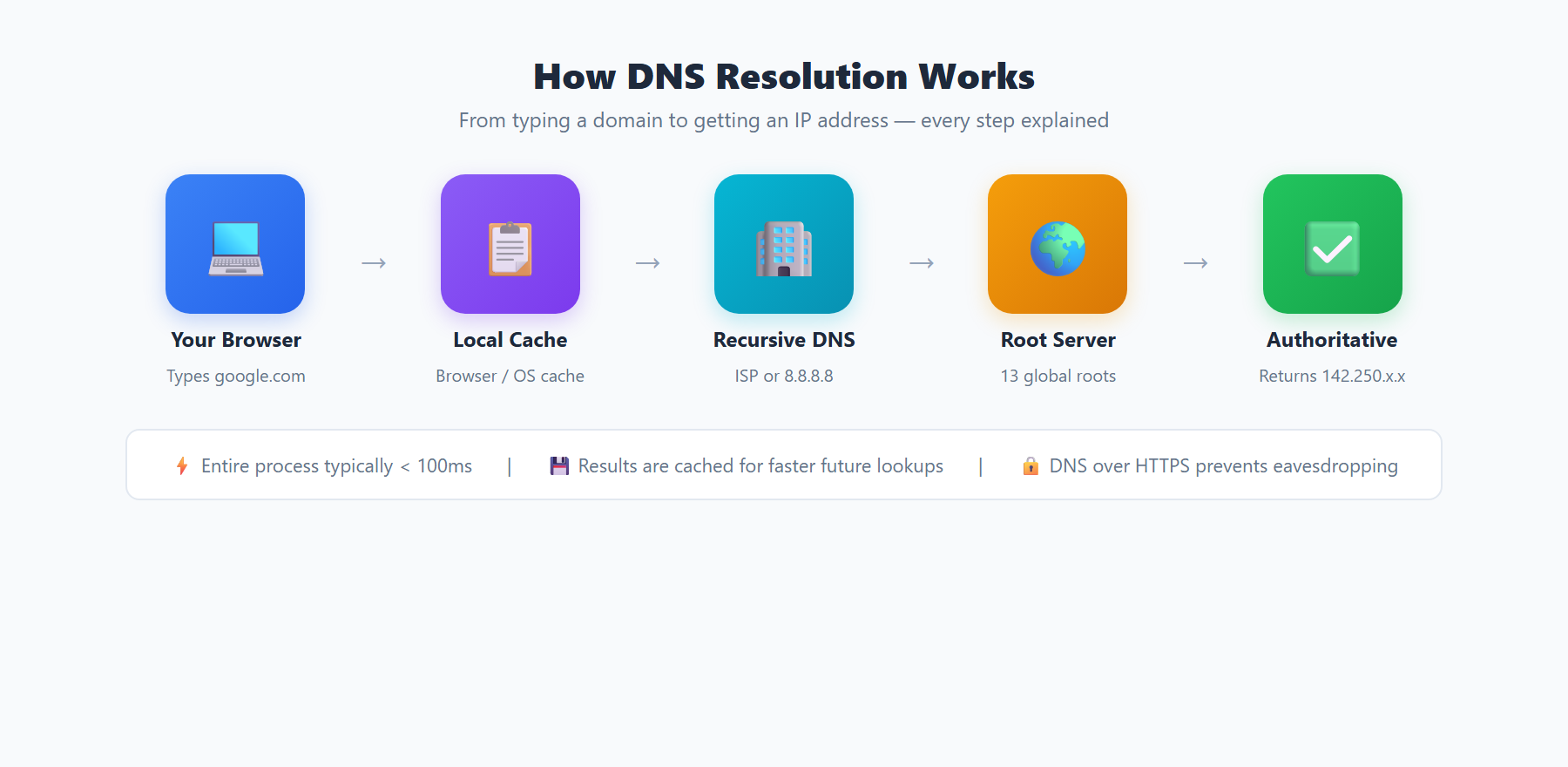
A typical DNS resolution involves multiple steps, each introducing potential privacy exposure points:
- Browser Cache: The browser first checks its local cache for a previous resolution of the domain. Modern browsers like Chrome maintain their own DNS cache separate from the operating system.
- OS Cache and Hosts File: If the browser cache misses, the operating system checks its own DNS cache and the local
hostsfile. On Linux and macOS, this file is located at/etc/hosts; on Windows, it is atC:\Windows\System32\drivers\etc\hosts. - Stub Resolver to Recursive Resolver: The OS sends the query to its configured DNS server, usually provided by your ISP via DHCP. This recursive resolver does the heavy lifting.
- Root Servers: The recursive resolver queries one of the 13 root server clusters (labeled A through M) to find the authoritative server for the top-level domain (e.g.,
.im). - TLD Servers: The root server refers the resolver to the TLD nameserver, which knows which authoritative nameserver handles
ipinfo.im. - Authoritative Nameserver: Finally, the authoritative nameserver returns the actual IP address record (A record for IPv4, AAAA record for IPv6).
- Response and Caching: The recursive resolver caches the result according to the record's TTL (Time to Live) and returns it to your device. The browser can now establish a TCP/TLS connection to the web server.
The entire process typically completes in 10 to 100 milliseconds, virtually invisible to the user. However, every intermediate server in this chain can potentially log your query, creating a detailed record of your browsing history.
The Privacy Problem: Your DNS Queries Are Fully Exposed
Traditional DNS uses UDP port 53 with zero encryption. This architectural decision from 1983 has enormous privacy implications in the modern internet:
- ISP Surveillance: Your ISP can see every domain you visit, build comprehensive browsing profiles, and in many jurisdictions is legally required to retain this data for months or years under data retention laws.
- Public Wi-Fi Risks: On coffee shop or airport Wi-Fi, attackers can passively sniff all DNS requests with tools like Wireshark. A simple packet capture filter for UDP port 53 reveals every website you are visiting in real time.
- DNS Hijacking: Man-in-the-middle attackers, or even your ISP itself, can forge DNS responses to redirect you to phishing sites, advertising pages, or surveillance endpoints. This requires no sophisticated tools — just access to the network path.
- Government Surveillance: In many countries, DNS queries are collected at the national level for censorship and mass surveillance programs. Some governments operate mandatory DNS interception infrastructure.
This is why even with HTTPS protecting page content, your ISP still knows which websites you access — because DNS queries happen before the HTTPS connection is established. The domain name you are visiting is transmitted in complete plaintext during this initial phase.
DNS Hijacking and Poisoning: Real-World Attack Scenarios
DNS attacks are not theoretical — they happen regularly and at significant scale:
- DNS Cache Poisoning: An attacker sends forged DNS responses to a recursive resolver, inserting a malicious IP address into the cache. All users of that resolver are then silently redirected to the attacker's server. The Kaminsky attack demonstrated in 2008 showed this vulnerability could compromise entire ISP-level resolvers serving millions of users.
- ISP-Level Hijacking: Some ISPs intercept DNS queries for non-existent domains (NXDOMAIN responses) and redirect users to advertising pages instead of showing a standard error. This practice breaks applications that rely on accurate DNS responses and violates the DNS protocol specification.
- BGP Hijacking Affecting DNS: In April 2018, attackers used BGP route hijacking to redirect traffic destined for Amazon Route 53 DNS servers, allowing them to steal approximately $150,000 in cryptocurrency from MyEtherWallet users. This attack demonstrated that DNS security fundamentally depends on the integrity of the underlying routing infrastructure.
- State-Level DNS Manipulation: Some governments operate transparent DNS proxies that intercept all port 53 traffic regardless of which DNS server the user has manually configured. This effectively forces all traditional DNS queries through state-controlled resolvers, making manual DNS server changes ineffective without encryption.
The Fix: Encrypt Your DNS
Two mainstream DNS encryption protocols exist today, each with distinct trade-offs that affect their suitability for different environments:
- DoH (DNS over HTTPS): Wraps DNS queries inside standard HTTPS requests on port 443. Because it uses the same port as regular web traffic, it is virtually impossible for network operators to selectively block DoH without blocking all HTTPS traffic entirely. Natively supported by Firefox, Chrome, Edge, and Safari across all major desktop and mobile platforms.
- DoT (DNS over TLS): Creates a dedicated encrypted channel on port 853 specifically for DNS queries. While it provides equivalent encryption strength to DoH, the dedicated port makes it straightforward for firewalls and network administrators to detect and selectively block. Supported natively by Android 9 and later (via the Private DNS feature) and many Linux distributions through systemd-resolved.
A newer protocol, DNS over QUIC (DoQ), is also gaining adoption. It combines the privacy benefits of encryption with reduced latency by leveraging the QUIC transport protocol, which eliminates the TCP handshake overhead and provides built-in connection migration — useful for mobile devices that frequently switch between Wi-Fi and cellular networks.
How to Enable Encrypted DNS on Every Platform
Google Chrome
Navigate to Settings > Privacy and Security > Security > Use secure DNS. Select a provider such as Cloudflare (1.1.1.1) or Google (8.8.8.8). Chrome will automatically use DoH when the configured server supports it and fall back to traditional DNS only if DoH is unavailable.
Mozilla Firefox
Go to Settings > Privacy & Security > DNS over HTTPS. Firefox offers a Max Protection mode, which refuses to fall back to unencrypted DNS if the DoH server is unreachable, ensuring your DNS queries are never exposed even temporarily.
Windows 11
Open Settings > Network & Internet > Wi-Fi (or Ethernet) > DNS server assignment > Edit. Enter a DoH-compatible server IP address and select Encrypted only (DNS over HTTPS) from the encryption dropdown. This applies system-wide to all applications.
macOS
As of macOS Ventura, you can install a DNS configuration profile to enable DoH or DoT system-wide. Download a signed profile from your DNS provider (Cloudflare and NextDNS both offer these) or use the open-source dns-profile-creator tool to generate a custom profile.
Android
Go to Settings > Network & Internet > Private DNS and select "Private DNS provider hostname." Enter a DoT hostname such as one.one.one.one (Cloudflare) or dns.google (Google). This encrypts all DNS traffic system-wide using DNS over TLS.
Recommended Public Encrypted DNS Providers
| Provider | DoH Endpoint | Primary DNS | Privacy Policy |
|---|---|---|---|
| Cloudflare | https://cloudflare-dns.com/dns-query | 1.1.1.1 | Logs purged within 24 hours |
https://dns.google/dns-query | 8.8.8.8 | Temporary logs, anonymized after 48h | |
| Quad9 | https://dns.quad9.net/dns-query | 9.9.9.9 | No personal data logged, Swiss jurisdiction |
| Mullvad | https://dns.mullvad.net/dns-query | 194.242.2.2 | No logging, ad and tracker blocking available |
DNSSEC: Authenticating DNS Responses
While DoH and DoT encrypt the transport layer, they do not verify that the DNS response itself is authentic and unmodified. DNSSEC (DNS Security Extensions) solves this complementary problem by adding cryptographic signatures to DNS records at the authoritative server level.
With DNSSEC enabled, your resolver can cryptographically verify that a DNS response genuinely came from the authoritative nameserver and was not tampered with in transit. This prevents cache poisoning and response forgery attacks. However, DNSSEC has important limitations: it does not encrypt query contents (privacy is not its design goal), deployment remains incomplete across the global DNS infrastructure, and misconfigured DNSSEC can cause total resolution failures for affected domains. The ideal security posture combines DNSSEC validation with DoH or DoT encryption, achieving both response authenticity and query privacy simultaneously.
DNS Leak Testing: A Critical Post-Configuration Step
Even after carefully configuring encrypted DNS, leaks can still occur due to system misconfigurations, VPN split tunneling policies, IPv6 fallback behavior, or operating system-level DNS resolver fallback mechanisms. A DNS leak means your queries are being sent to an unintended resolver — typically your ISP's default DNS server — despite your explicit privacy configuration.
To test for DNS leaks, visit ipinfo.im and examine the ISP field displayed for your connection. If the ISP shown matches your local broadband provider rather than your VPN or encrypted DNS provider, your DNS configuration is likely leaking. You should also verify that your IP geolocation matches the expected location of your VPN server rather than your physical location. Performing this verification after every network configuration change, VPN reconnection, or operating system update is a simple but essential privacy hygiene practice that takes only seconds.
Command-Line DNS Verification
Beyond using ipinfo.im for a quick visual check, you can verify your active DNS resolver from the command line for a more technical confirmation. On macOS or Linux, run dig +short whoami.cloudflare.com @1.1.1.1 TXT to confirm queries are reaching Cloudflare's resolver. On Windows, use nslookup ipinfo.im and observe the "Server" field in the response — it shows which DNS server actually answered your query. If the responding server IP belongs to your ISP rather than your configured encrypted DNS provider, your DNS traffic is not being properly encrypted. Regular command-line verification helps ensure that operating system updates, network changes, or VPN disconnections have not silently reverted your carefully configured DNS settings to insecure defaults.