The Gatekeepers: Internet Service Providers
Every byte of data you send or receive on the internet passes through your Internet Service Provider. Whether you use Comcast in the United States, BT in the United Kingdom, Deutsche Telekom in Germany, or China Telecom in mainland China, your ISP occupies a privileged position in the network topology. It sits between your device and every server you communicate with, functioning as a mandatory relay point for all of your traffic. This architectural reality means that ISPs have the technical capability to observe, log, and analyze significant portions of your online activity, even when you believe your connection is secure.
Understanding what your ISP can and cannot see is not merely an academic exercise. It has practical implications for your privacy, your security posture, and your ability to maintain control over your personal data. In many jurisdictions, ISPs are legally required to retain certain categories of data about their subscribers. In others, ISPs voluntarily collect and monetize browsing data through advertising partnerships. Either way, the information your ISP gathers about you is substantial.
What Your ISP Can See
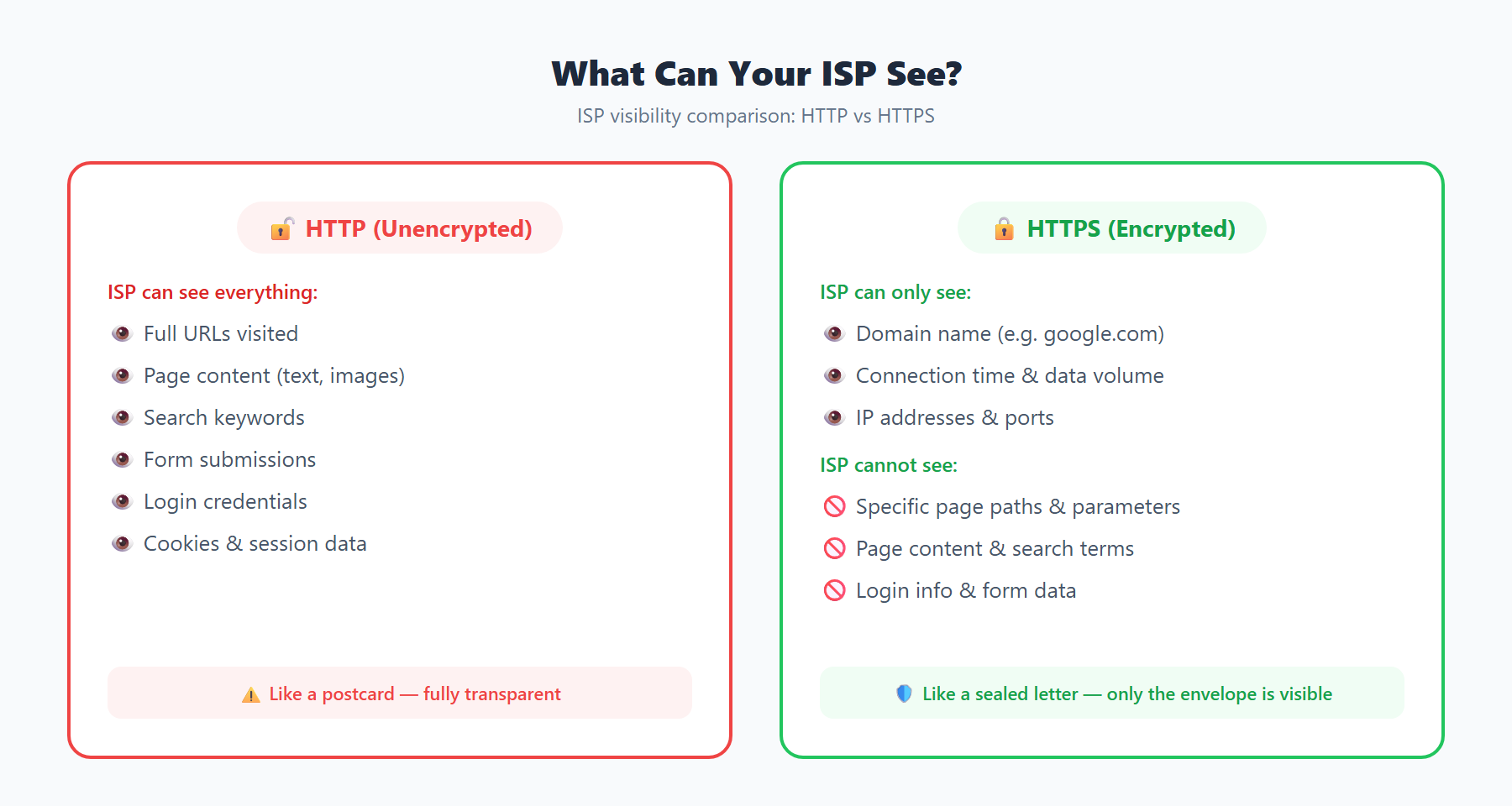
- DNS Queries: The Domain Name System is often called the phonebook of the internet. When you type a domain name into your browser, your device sends a DNS query to resolve that name into an IP address. By default, most operating systems send these queries to a DNS resolver operated by your ISP. These queries travel in plaintext, meaning your ISP can see every domain you look up. They know you visited example.com, news-outlet.org, or streaming-service.net. They do not see the specific page or path you visited on those domains, but the domain itself is fully visible. Even if you do not use your ISP's DNS resolver, your ISP can still intercept unencrypted DNS traffic on port 53 through a technique known as transparent DNS proxying.
- SNI (Server Name Indication): When your browser establishes an HTTPS connection, the TLS handshake includes a field called the Server Name Indication. This field contains the hostname of the server you are connecting to, and it is transmitted in plaintext during the initial ClientHello message. This means your ISP can observe the destination hostname even for encrypted HTTPS connections. For example, if you visit https://www.example.com/private/document.html, your ISP cannot see the "/private/document.html" path, but they can see that you connected to "www.example.com" through the SNI field. This represents one of the most significant privacy gaps in the modern TLS ecosystem.
- Traffic Metadata: ISPs can observe connection timestamps indicating exactly when you connected to each destination. They can measure the volume of data transferred in each direction, the duration of each connection, and the destination IP addresses. Through statistical traffic analysis and fingerprinting techniques, ISPs can often infer what type of activity you are engaged in. For instance, a sustained high-bandwidth connection to a known video streaming IP range strongly suggests you are watching video content. Short, bursty connections to messaging service IPs suggest chat activity. These metadata patterns can reveal surprisingly detailed information about your habits even without access to the encrypted payload.
- Unencrypted HTTP Traffic: Although HTTPS adoption has increased dramatically, some websites and services still use unencrypted HTTP. For these connections, your ISP can see everything: the full URL, request headers, cookies, form data, and the complete content of the pages you view. This is why using HTTPS everywhere is critical.
What Your ISP Cannot See
The widespread adoption of HTTPS has significantly limited what ISPs can observe. When you connect to a website over HTTPS, the content of your communication is encrypted using TLS. This means your ISP cannot read your email messages, cannot see the passwords you type into login forms, cannot view the contents of your search queries on encrypted search engines, and cannot intercept the specific pages you visit within an encrypted site. They cannot read your private messages on end-to-end encrypted messaging platforms. They cannot see the contents of files you upload or download over encrypted connections. The encryption provided by TLS is robust, and ISPs cannot feasibly break it through brute force.
However, it is important to understand that "cannot see the content" is different from "cannot see anything." As described above, metadata and DNS queries still leak significant information even when the payload is encrypted.
Deep Packet Inspection (DPI)
Deep Packet Inspection is a sophisticated network analysis technique that examines the full content of data packets as they pass through a network checkpoint. Unlike simple packet filtering that only looks at headers, DPI analyzes the payload of each packet against a database of known signatures and patterns. ISPs deploy DPI equipment for several purposes: traffic management, regulatory compliance, law enforcement cooperation, and in some cases, commercial data collection.
DPI can identify the application protocol being used even when the traffic is routed through non-standard ports. It can detect BitTorrent traffic, VoIP calls, video streaming sessions, and other application types by examining packet structure and content patterns. In countries with extensive internet censorship, DPI is used to detect and block VPN protocols, Tor traffic, and other circumvention tools by identifying their characteristic traffic signatures.
Modern DPI systems can process traffic at line speed, meaning they introduce negligible latency while inspecting every packet flowing through the ISP's network. Some advanced DPI systems use machine learning to classify encrypted traffic based on packet size distributions, timing patterns, and other statistical features, even without being able to decrypt the payload.
How ISP Logging Works in Practice
ISP data retention is governed by a patchwork of national and regional laws. In the European Union, although the original Data Retention Directive was invalidated by the Court of Justice in 2014, many member states maintain their own data retention laws requiring ISPs to store connection metadata for periods ranging from six to twelve months. In the United Kingdom, the Investigatory Powers Act 2016 requires ISPs to retain Internet Connection Records for twelve months. In the United States, there is no federal mandatory data retention law, but ISPs typically retain logs voluntarily for periods ranging from six months to several years, and law enforcement can compel disclosure through subpoenas, court orders, or National Security Letters.
The logs that ISPs maintain typically include the following data points for each subscriber: the source IP address assigned to the subscriber at each point in time, timestamps for when the subscriber connected and disconnected, DNS query logs showing which domains were resolved, NetFlow or IPFIX records showing the source and destination IP addresses, ports, protocols, byte counts, and timestamps for each network flow. Some ISPs also retain HTTP request logs for unencrypted traffic and email metadata including sender, recipient, and subject line information.
These logs are stored in centralized databases and can be queried by authorized personnel in response to legal requests. In practice, this means that a sufficiently motivated government agency can reconstruct a detailed picture of your internet activity over the retention period, even if they cannot access the encrypted content of your communications.
ISP Throttling: When Your Provider Slows You Down
ISP throttling is the deliberate slowing of internet traffic by your service provider. Throttling is implemented using DPI and traffic classification systems that identify specific types of traffic and apply bandwidth limits or quality-of-service policies to them. Common targets for throttling include video streaming services during peak hours, peer-to-peer file sharing protocols like BitTorrent, and VPN connections.
The technical mechanism works as follows: DPI equipment classifies each network flow by application type. When a flow is identified as belonging to a throttled category, the ISP's traffic shaping equipment reduces the available bandwidth for that flow by dropping packets, introducing artificial latency, or placing the traffic in a lower-priority queue. The result is slower speeds, buffering during video playback, or degraded performance for the targeted application.
Net neutrality regulations, where they exist, prohibit ISPs from discriminating against specific types of traffic. In the United States, net neutrality rules were repealed by the FCC in 2017, giving ISPs broader latitude to implement traffic management policies. In the European Union, net neutrality is protected under Regulation 2015/2120, which prohibits blocking and throttling of specific content, applications, or services. However, enforcement varies across member states, and ISPs sometimes use ambiguous "reasonable traffic management" exceptions to justify throttling.
You can detect throttling by running speed tests to different destinations and comparing the results. If your connection to a specific streaming service is significantly slower than your connection to a generic speed test server, throttling may be occurring. Tools that measure latency and packet loss to specific destinations can provide additional evidence.
Encrypted Client Hello (ECH): The Next Privacy Frontier
Encrypted Client Hello, formerly known as Encrypted SNI (ESNI), is a TLS extension designed to address the SNI privacy gap described earlier. In a standard TLS handshake, the ClientHello message, including the SNI field, is sent in plaintext because the encryption keys have not yet been negotiated. ECH solves this problem by encrypting the entire ClientHello message using a public key that the client obtains through a DNS record.
The technical process works as follows. The server publishes an ECH configuration containing a public key in a DNS HTTPS record. When the client initiates a TLS connection, it encrypts the real ClientHello (called the "inner" ClientHello) using this public key and wraps it inside an "outer" ClientHello that contains a non-sensitive cover hostname. An observer such as your ISP sees only the outer ClientHello with the cover hostname, not the actual destination you are connecting to.
For ECH to be effective, it must be combined with encrypted DNS (DoH or DoT) to prevent the ISP from observing the DNS lookup that retrieves the ECH configuration. When both ECH and encrypted DNS are in use, your ISP can see only the destination IP address, not the specific hostname you are connecting to. Since many websites share IP addresses on content delivery networks, this significantly reduces the ISP's ability to determine which site you are visiting.
ECH support is being implemented in major browsers. Firefox has had experimental ECH support since version 85, and Cloudflare has deployed ECH across its CDN infrastructure. As adoption increases, ECH will close one of the last remaining plaintext metadata leaks in the HTTPS ecosystem.
Practical Steps to Minimize ISP Tracking
Reducing your ISP's visibility into your online activity requires a layered approach. No single measure provides complete protection, but combining multiple techniques significantly raises the bar for surveillance.
- Use Encrypted DNS (DoH or DoT): Configure your operating system or browser to use DNS over HTTPS or DNS over TLS. This encrypts your DNS queries so your ISP cannot see which domains you are resolving. On Windows 10 and later, you can configure DoH in the network adapter settings. On Firefox, navigate to Settings, then Privacy and Security, and enable DNS over HTTPS with a provider like Cloudflare (1.1.1.1) or Google (8.8.8.8). On Android, enable Private DNS in the network settings and enter a DoT provider hostname.
- Enable Encrypted Client Hello (ECH): In Firefox, navigate to about:config and set network.dns.echconfig.enabled to true. Ensure you are also using DoH so that your ISP cannot observe the ECH configuration lookup. ECH is still in the deployment phase, so not all websites support it yet, but enabling it ensures you benefit from the protection where it is available.
- Use a Trusted VPN: A reputable VPN encrypts all traffic between your device and the VPN server, preventing your ISP from seeing anything beyond the fact that you are connected to a VPN. Choose a VPN provider with a verified no-logs policy, strong encryption (WireGuard or OpenVPN with AES-256), and servers in jurisdictions with strong privacy laws. Be aware that you are shifting trust from your ISP to your VPN provider, so choose carefully.
- Use Tor for Sensitive Browsing: For activities requiring strong anonymity, the Tor network routes your traffic through multiple relays, making it extremely difficult for any single entity to correlate your activity. Tor is slower than a VPN but provides stronger anonymity guarantees. Use the Tor Browser for the best protection, as it includes additional fingerprinting defenses.
- Verify Your Exposure on ipinfo.im: After implementing these measures, visit ipinfo.im to verify what information is visible about your connection. Check your public IP address to confirm your VPN is active. Check the ISP field to ensure it shows your VPN provider rather than your actual ISP. This verification step is essential to confirm your privacy tools are working correctly.
How to Verify Your ISP Exposure Right Now
Understanding your current exposure level is the first step toward improving your privacy. Visit ipinfo.im and examine the information displayed about your connection. The tool will show your public IP address, your ISP name, your approximate geographic location, and your Autonomous System Number (ASN).
The ISP field is particularly revealing. If you are not using a VPN, this field will show your actual Internet Service Provider, such as "Comcast Cable Communications" or "China Telecom." This is the same ISP that has the ability to log and analyze your traffic as described in this article. If you are using a VPN, the ISP field should show your VPN provider's name or the hosting company that operates the VPN server.
The geographic location shown on ipinfo.im represents the location associated with your public IP address in geolocation databases. This is typically accurate to the city level and reflects either your actual location (without VPN) or the location of your VPN server (with VPN). If the location does not match your VPN server's expected location, it may indicate a DNS leak or a misconfigured VPN connection.
The ASN information identifies the network that owns your IP address. Each ISP and large network operator has one or more ASN assignments. By checking the ASN, you can verify that your traffic is being routed through the network you expect. This is useful for detecting situations where your VPN connection has dropped and your traffic has reverted to your ISP's network without your knowledge.
Make it a regular practice to check your IP information, especially after changing network configurations, connecting to new Wi-Fi networks, or updating VPN software. Consistent monitoring helps ensure that your privacy measures remain effective over time.