Within your home, your router is much more than just a box that provides a Wi-Fi signal. It acts as the primary physical defense line isolating your private digital life from the wild, public internet. If this defense is breached, hackers can not only steal your bandwidth but also intercept your web traffic, hijack your online banking passwords, and even transform your smart appliances into nodes of a botnet.
Why Are Routers Prime Targets for Attacks?
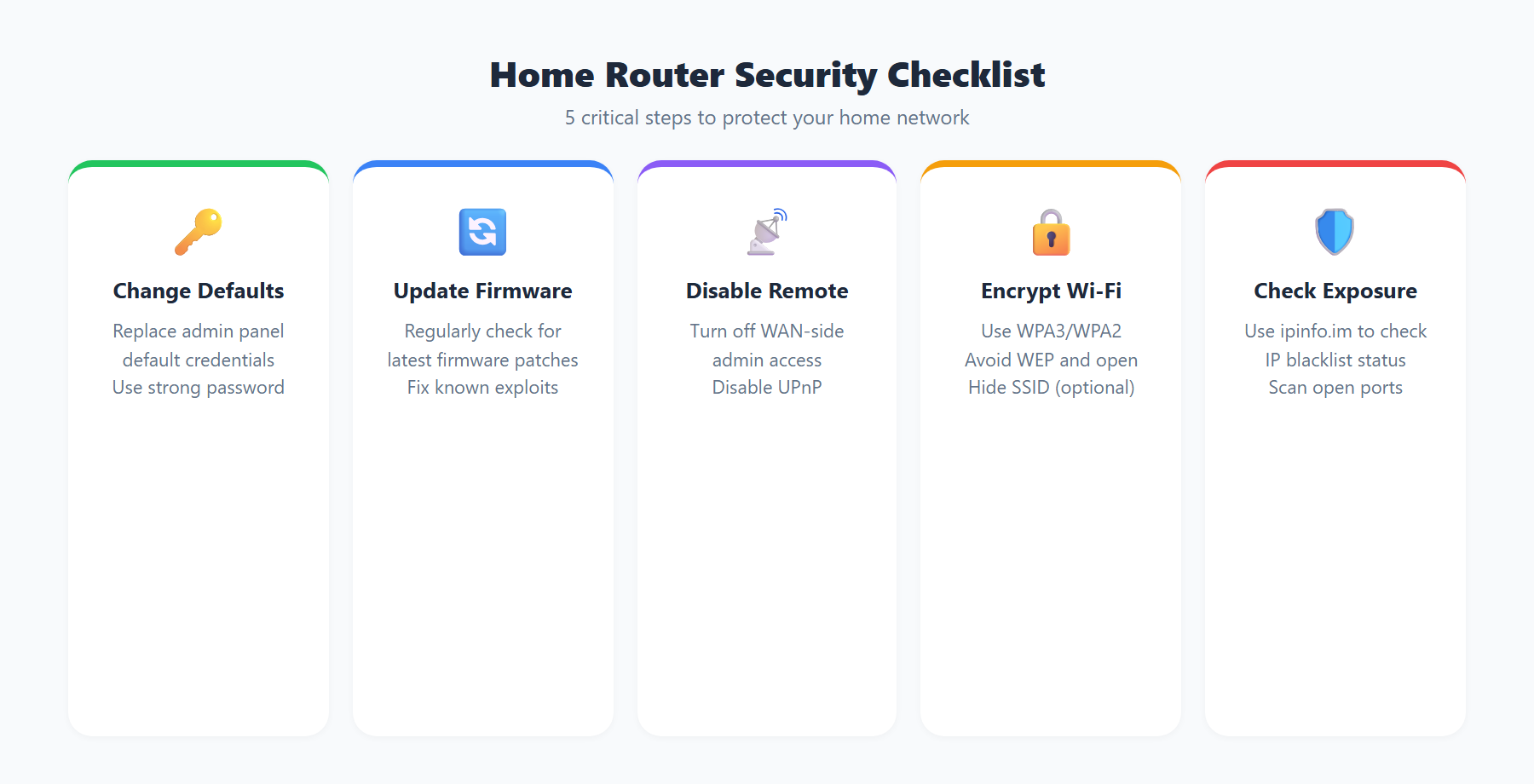
The reason routers are such attractive targets for hackers is straightforward. First, the vast majority of home users never change the factory default password on their router. According to security research, over 70% of home routers still use credentials like admin/admin or similar weak default combinations. For an attacker, this is the equivalent of finding a house with the front door wide open and the keys left in the lock.
Second, many routers ship with UPnP (Universal Plug and Play) enabled by default. UPnP allows devices on the local network to automatically create port forwarding rules on the router. While this is convenient for gaming consoles and smart devices, it also creates a pathway for malware to expose internal network services to the public internet. The 2018 UPnProxy attack exploited this vulnerability, affecting hundreds of thousands of routers worldwide.
Third, firmware updates are severely neglected in the consumer router space. Many users never update their router's firmware after the initial setup, yet security vulnerabilities discovered by manufacturers require firmware updates to patch. A router running firmware from two or three years ago may contain dozens of known security vulnerabilities, each one a potential entry point for attackers.
Finally, a router is a device that runs 24/7 with virtually no monitoring. Unlike computers and smartphones, users rarely check their router's operational status. This means that once a router is compromised, an attacker can maintain persistent access for months or even years without detection. More critically, the router is the network gateway for every device in the home — controlling the router means controlling all inbound and outbound traffic for the entire household.
Common Router Attack Methods
Default Password Brute-Forcing
This is the simplest yet most effective attack vector. Attackers use automated tools to scan the internet for routers with exposed management interfaces, then try common default username and password combinations. Credentials like admin/admin, admin/password, admin/1234, and root/root are cataloged in publicly available default password databases. The Mirai botnet famously used a list of just over 60 default credential pairs to infect more than 600,000 IoT devices (many of which were home routers) in a short period, ultimately launching the largest DDoS attack in history that took down major websites across the US East Coast.
Even if you have changed your password, using a simple one (like 12345678 or your phone number) means brute-force tools can crack it in minutes. Use a password that is at least 12 characters long and includes uppercase letters, lowercase letters, numbers, and special symbols.
DNS Hijacking
DNS hijacking is an extremely stealthy attack method. After gaining access to the router's management interface through a vulnerability or weak password, the attacker changes the DNS server settings to point to a malicious DNS server. From that point forward, when you try to visit banking, e-commerce, or social media websites, the malicious DNS redirects you to carefully crafted phishing pages.
What makes this attack particularly dangerous is that the domain name in your browser's address bar appears completely correct (for example, www.yourbank.com), but you are actually connecting to a server controlled by the attacker. The 2019 GhostDNS campaign compromised over 100,000 routers using this technique, primarily targeting Brazilian users' online banking credentials. Victims unknowingly entered their bank account numbers and passwords into phishing sites that looked identical to the real thing.
Firmware Vulnerability Exploitation
Router firmware is essentially a stripped-down embedded Linux system, and like all software, it contains security vulnerabilities. Common vulnerability types include: buffer overflows (allowing arbitrary code execution), command injection (injecting system commands through the web management interface), and authentication bypass (accessing admin functions without a password).
A vulnerability disclosed in 2021 affecting a major router brand (CVE-2021-20090) allowed attackers to bypass authentication through a simple HTTP request, gaining full control of the router. This vulnerability affected millions of devices globally. Such vulnerabilities are typically exploited at scale shortly after public disclosure, making timely firmware updates critical.
UPnP Abuse
The UPnP protocol was designed to facilitate automatic device discovery and connectivity, but it lacks any authentication mechanism. This means any device on the local network (including compromised ones) can request the router to open arbitrary port forwarding rules via UPnP. Attackers exploit this to expose internal network services to the public internet, or to turn the router into a proxy relay that hides the true origin of attack traffic.
In real-world attacks, malware uses UPnP to create port forwarding rules on the router, directing external connections straight to internal cameras, NAS devices, or computers. Users typically have no idea this is happening because it all occurs silently in the router's background processes.
Remote Management Exposure
Many routers offer a remote management feature that allows users to access the router's web management interface via the public IP address. If this feature is enabled without a strong password or access restrictions, it effectively places the router's admin panel on the open internet for anyone to find. Global scanning engines like Shodan and Censys can easily discover these exposed management interfaces.
According to Shodan scanning data, over 4 million routers worldwide have their management interfaces exposed on the public internet. A large proportion of these use plaintext HTTP (rather than HTTPS), meaning the administrator password is transmitted completely unencrypted. An attacker can steal it through a simple man-in-the-middle attack.
Router Security Checklist
The following are router security hardening steps that every home user should take. Even if you are not a technical expert, following this checklist can reduce your security risk by over 90%:
1. Change the Default Admin Password Immediately
This is the most important and simplest step. Log into your router's management interface (usually 192.168.1.1 or 192.168.0.1), find the administrator password settings, and change it to a strong password. A good password should be at least 12 characters long and include uppercase letters, lowercase letters, numbers, and special symbols (e.g., R0ut3r#S3cur!ty@2026). Also change the admin username if your router allows it — do not leave it as "admin".
2. Update Your Router Firmware Regularly
Check the manufacturer's website once a month for new firmware releases. Many modern routers support automatic updates — enable this feature if available. Firmware updates not only fix known security vulnerabilities but may also bring performance improvements and new features. If your router has not received a firmware update in over 3 years, it is strongly recommended to replace it with a newer model that is still within the manufacturer's support lifecycle.
3. Disable Remote Management / WAN Access to the Admin Panel
Unless you have a very specific need (such as remotely maintaining your home network), disable the router's remote management feature. In your router's settings, find the "Remote Management" or "WAN Access" option and set it to disabled. If you do need remote access, connect to your home network via VPN first, then access the router's management interface — rather than exposing the admin port directly to the public internet.
4. Disable UPnP Unless Specifically Needed
In your router's advanced settings, locate the UPnP option and turn it off. If disabling it causes connectivity issues with certain applications (such as online games or video calls), you can manually configure the specific port forwarding rules needed. This is far more secure than leaving UPnP enabled, because manual port forwarding only opens specific ports for specific devices, whereas UPnP allows any device to open any port.
5. Use WPA3 or WPA2-AES Encryption
In your wireless security settings, select WPA3 (if your router and devices support it) or WPA2-AES as the encryption method. Never use WEP or WPA-TKIP — these outdated encryption protocols have been proven to be crackable in minutes. Set a strong Wi-Fi password (different from the admin password), ideally 16 characters or longer.
6. Change the Default SSID and Consider Hiding the Broadcast
Change your router's default SSID (like TP-LINK_XXXX or NETGEAR-XXXX) to a custom name that does not contain brand or model information. A default SSID reveals the router's brand and model, helping attackers quickly look up known vulnerabilities for that specific device. If practical, disable SSID broadcast so your network does not appear in the public Wi-Fi list (devices that are already connected will not be affected).
7. Enable the Firewall and Disable WPS
Ensure the router's built-in SPI firewall is enabled. At the same time, disable WPS (Wi-Fi Protected Setup). While WPS simplifies the device connection process through a button press or PIN code, the WPS PIN mechanism has severe security flaws. An attacker can brute-force the PIN and obtain your Wi-Fi password within a few hours.
8. Set Up a Separate Guest Network for IoT Devices
Smart cameras, robot vacuums, smart speakers, and other IoT devices often have weaker security than phones and computers. Create an isolated guest network for these devices, separate from your main network. This way, even if an IoT device is compromised, the attacker cannot directly access your computers, phones, NAS, and other critical devices on the primary network.
How to Detect If Your Router Has Been Compromised
Even with protective measures in place, regularly checking your router's security status is essential. Here are the key inspection points:
Check If DNS Settings Have Been Tampered With
Log into your router's management interface and review the DNS server settings. Under normal circumstances, DNS should be set to automatic (obtained from your ISP) or a trusted DNS server you have manually configured (such as Google's 8.8.8.8 / 8.8.4.4, Cloudflare's 1.1.1.1, or Quad9's 9.9.9.9). If you find the DNS is set to an address you do not recognize, this is a strong indicator that your router has been compromised and DNS has been hijacked.
Look for Unknown Connected Devices
On your router's "Connected Devices" or "DHCP Client List" page, check whether there are any devices you do not recognize. Document the MAC addresses of all your networked devices and compare them regularly against the list. An unfamiliar device may indicate someone is piggybacking on your Wi-Fi, or worse — an attacker has already gained access to your internal network.
Check for Unexpected Port Forwarding Rules
In your router's port forwarding or virtual server settings page, look for any rules you did not create. Malware or attackers may use UPnP or direct exploitation to create port forwarding rules that expose internal device ports to the public internet. Pay special attention to rules mapping to common ports like 22 (SSH), 23 (Telnet), 80 (HTTP), 443 (HTTPS), and 3389 (RDP).
Monitor Unusual Bandwidth Usage
If you notice your internet speed has suddenly slowed down or your router's traffic statistics show abnormal upload/download volumes, this may indicate the router has been co-opted as a botnet node, a cryptocurrency mining proxy, or a DDoS attack relay. Some routers provide real-time traffic monitoring features — review each device's bandwidth consumption regularly. If a device shows heavy upload traffic when you are not using it, investigate immediately.
Advanced Security Measures
If you want to take your home network security to the next level, here are some advanced techniques:
Use Third-Party Open-Source Firmware
OpenWrt and DD-WRT are two widely popular third-party router firmware options. Compared to stock firmware, they offer a more transparent code base, more frequent security updates, and a richer set of features. With OpenWrt, you can exercise fine-grained control over firewall rules, traffic shaping, QoS policies, and much more. Before flashing third-party firmware, verify that your router model is on the compatibility list and back up the original firmware.
Configure a VPN at the Router Level
Setting up a VPN client on your router (such as WireGuard or OpenVPN) allows every device connected through the router to automatically use an encrypted tunnel for internet access. This not only protects your browsing privacy but also prevents your ISP from monitoring your network activity. Additionally, if you need remote access to devices at home, configuring a VPN server on your router is far more secure than opening ports directly.
Network Segmentation with VLANs
VLANs (Virtual Local Area Networks) allow you to divide a physical network into multiple logically independent subnets. For example, you could create the following segments: a work devices VLAN, an entertainment devices VLAN, an IoT devices VLAN, and a guest VLAN. Communication between VLANs is controlled by firewall rules, so even if a device in one VLAN is compromised, the attacker cannot move laterally to other VLANs. This requires a router or Layer 3 switch that supports VLAN tagging.
Enable Logging and Monitoring
Turn on your router's system logging feature and send logs to an internal Syslog server or log collection tool (such as Graylog or the ELK Stack). Through logs, you can track login attempts, configuration changes, port scans, and other security events. Combined with simple alerting rules, the system can notify you via email or push notification when anomalous activity is detected. This is essentially a home-grade implementation of professional network security monitoring.
Use ipinfo.im to Check Your Network Security Status
After completing the security hardening steps above, you can use ipinfo.im to verify that your network security configuration is working as intended:
Check Your Public IP Exposure
Visit ipinfo.im to see your current public IP address and ISP information. If you have configured a VPN, the page should display the VPN server's IP rather than your real IP. Also check whether there is a dual-stack exposure situation with both IPv4 and IPv6 — sometimes even when IPv4 traffic is routed through a VPN, IPv6 traffic may still take a direct path, causing an IP leak. The dual-stack IP detection feature of ipinfo.im can help you quickly identify this type of issue.
Verify Your DNS Configuration
By reviewing the network information returned by ipinfo.im, you can confirm whether your traffic is following the expected network path. If the ISP information does not match your actual provider, it may indicate that DNS has been hijacked or traffic is being redirected. Combined with the DNS settings check in your router's management interface, ensure your network requests have not been maliciously tampered with.
Remember, network security is not a one-time task but an ongoing process that requires continuous maintenance. It is recommended that you perform a comprehensive router audit using this security checklist every quarter to ensure your home network remains in a secure state at all times.