What Are LANs and Subnet Masks?
If you are new to networking, there is no need to feel overwhelmed. Local Area Networks and subnet masks are fundamental concepts that are easier to understand than they might sound. Let us break them down with clear, everyday analogies.
A Local Area Network (LAN) is a group of devices connected together within a limited area, such as your home, an office, or a school computer lab. These devices communicate with each other through a router or switch, sharing resources like files, printers, and internet access. When your phone, laptop, and tablet all connect to the same WiFi network at home, they form a LAN.
So what exactly does a subnet mask do? In simple terms, a subnet mask tells a computer which part of an IP address identifies the network and which part identifies the specific device on that network.
Here is a helpful analogy to make this concrete:
- The network portion of an IP address is like the street address of an apartment building (for example, "168 Happiness Road")
- The host portion is like the apartment number within that building (for example, "Unit 301")
- The subnet mask is the dividing line that tells the mail carrier where the building address ends and the apartment number begins
Without a subnet mask, a computer is like a delivery driver who cannot tell where the building address ends and the apartment number starts. It cannot determine whether the destination device is in the same building (local network) or a different one (remote network), and therefore cannot deliver data packets correctly.
In practical networking, every device must be configured with two essential parameters: an IP address and a subnet mask. The IP address identifies the device, while the subnet mask defines the boundary of the network. Together, they enable data to travel correctly across the network.
IP Address Structure: Network Address vs Host Address
To truly understand subnet masks, we first need to look at the internal structure of an IP address. The IP addresses we see every day (like 192.168.1.100) are written in decimal notation, but computers actually work with binary (zeros and ones) internally.
An IPv4 address consists of 32 binary digits (bits), divided into 4 groups of 8 bits (called octets), separated by dots. Let us examine a concrete example:
IP Address:     192.168.1.100
Binary:         11000000.10101000.00000001.01100100

Subnet Mask:    255.255.255.0
Binary:         11111111.11111111.11111111.00000000
                |------ Network Part ------| |Host Part|
In the subnet mask, consecutive 1 bits correspond to the network portion, and consecutive 0 bits correspond to the host portion. In the example above:
- Network address:
192.168.1(first 24 bits) — identifies the subnet - Host address:
.100(last 8 bits) — identifies the specific device within the subnet
When a computer wants to send data, it performs a bitwise AND operation between the destination IP and the subnet mask to determine whether the target is on the same subnet:
My IP:       192.168.1.100  AND  255.255.255.0  =  192.168.1.0
Target IP:   192.168.1.200  AND  255.255.255.0  =  192.168.1.0
Results match → Same subnet, communicate directly!

My IP:       192.168.1.100  AND  255.255.255.0  =  192.168.1.0
Target IP:   192.168.2.50   AND  255.255.255.0  =  192.168.2.0
Results differ → Different subnets, forward through the gateway!
This is the core mechanism of subnet masks: using binary operations to quickly determine whether two devices belong to the same network. If they are on the same subnet, data travels directly within the LAN. If they are on different subnets, data must be sent to the gateway (usually a router), which forwards it to the correct destination network.
Special Addresses You Should Know
In every subnet, two addresses are reserved and cannot be assigned to devices:
- Network address (all host bits set to 0): e.g.,
192.168.1.0— represents the subnet itself - Broadcast address (all host bits set to 1): e.g.,
192.168.1.255— used to send messages to all devices on the subnet
Therefore, a /24 subnet has 256 total addresses (2^8), but only 254 are usable for devices (256 - 2).
Common Subnet Masks at a Glance
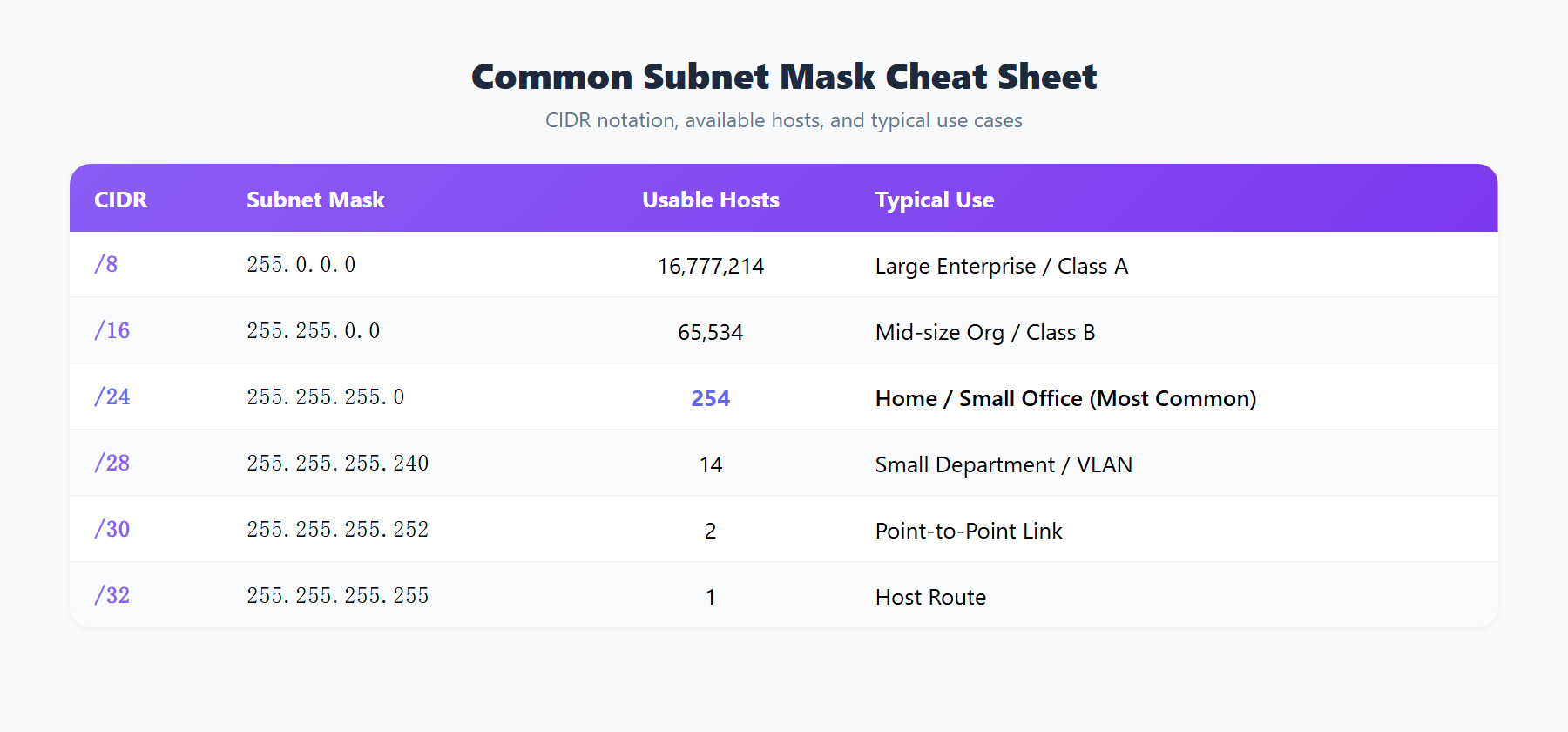
In real-world network administration, you will encounter various subnet masks regularly. The following reference table lists the most commonly used ones to help you quickly look up what you need:
CIDR Notation Explained
Before diving into specific subnet masks, let us understand a widely used shorthand called CIDR (Classless Inter-Domain Routing) notation. CIDR uses a forward slash followed by a number to indicate how many consecutive 1s are in the subnet mask. For example, /24 means the subnet mask has 24 consecutive 1s, which equals 255.255.255.0.
Subnet Mask Reference Table
CIDR    Subnet Mask           Usable Hosts    Common Use Case
/8      255.0.0.0             16,777,214      Very large networks (e.g., 10.0.0.0/8)
/16     255.255.0.0           65,534          Large enterprise or campus networks
/24     255.255.255.0         254             Most common for home and small office
/25     255.255.255.128       126             Medium department networks
/26     255.255.255.192       62              Small department or floor networks
/27     255.255.255.224       30              Small workgroups
/28     255.255.255.240       14              Very small subnets, e.g., server zones
/30     255.255.255.252       2               Point-to-point links between routers
/32     255.255.255.255       1               Single host routes
The formula for calculating usable hosts is: 2^(32 - CIDR prefix length) - 2. The subtracted 2 accounts for the network address and broadcast address mentioned earlier.
In home network environments, /24 (i.e., 255.255.255.0) is by far the most common. It provides 254 usable IP addresses, which is more than enough for typical household devices like phones, computers, tablets, and smart home gadgets.
In enterprise environments, network administrators select different subnet sizes based on department needs and security requirements. For instance, a department with 50 devices might use a /26 subnet (62 usable addresses), providing enough room for growth without wasting IP address space.
Subnet Division: A Hands-On Exercise
Now let us work through a practical subnetting exercise. Imagine you are the network administrator for a company, and you have been assigned the network 192.168.1.0/24. Your task is to divide it into 4 equal subnets, one for each department.
Step 1: Determine How Many Bits to Borrow
To create 4 subnets, we need to borrow enough bits from the host portion. Since 2^2 = 4, we need to borrow 2 bits. The original /24 subnet mask becomes /26 (24 + 2 = 26), which is 255.255.255.192.
Step 2: Calculate Each Subnet Range
After borrowing 2 bits, each subnet contains 2^6 = 64 addresses (of which 62 are usable for hosts). Here are the four resulting subnets:
Subnet 1 (Engineering):
  Network address:   192.168.1.0/26
  Usable range:      192.168.1.1 – 192.168.1.62
  Broadcast address: 192.168.1.63

Subnet 2 (Marketing):
  Network address:   192.168.1.64/26
  Usable range:      192.168.1.65 – 192.168.1.126
  Broadcast address: 192.168.1.127

Subnet 3 (Finance):
  Network address:   192.168.1.128/26
  Usable range:      192.168.1.129 – 192.168.1.190
  Broadcast address: 192.168.1.191

Subnet 4 (Administration):
  Network address:   192.168.1.192/26
  Usable range:      192.168.1.193 – 192.168.1.254
  Broadcast address: 192.168.1.255
Step 3: Verify the Results
Let us verify: 4 subnets multiplied by 64 addresses each equals 256 total addresses, which matches the original /24 network. Each subnet provides 62 usable host addresses, which is sufficient for most departments.
Advanced: Variable-Length Subnets (VLSM)
In practice, different departments rarely need the same number of addresses. For example, Engineering might have 50 devices while Administration only has 10. In such cases, you can use Variable Length Subnet Masking (VLSM):
- Engineering:
192.168.1.0/26(62 usable addresses) - Marketing:
192.168.1.64/27(30 usable addresses) - Finance:
192.168.1.96/27(30 usable addresses) - Administration:
192.168.1.128/28(14 usable addresses)
VLSM allows for much more efficient use of IP address space by tailoring each subnet to actual needs. This is standard practice in modern network design.
Why Does Subnetting Matter?
You might wonder: why not just put all devices on one large flat network and be done with it? In reality, subnetting serves several critical purposes in production networks:
1. Security Isolation
Placing different departments or security levels on separate subnets allows granular access control. For example:
- A Finance subnet can be isolated from the general office subnet with firewall rules, preventing unauthorized access to sensitive financial data
- Server infrastructure can be separated from employee workstations, reducing the attack surface
- Guest WiFi can run on its own subnet, ensuring visitors cannot reach internal company resources
- IoT devices (cameras, smart locks, sensors) can be placed on a dedicated subnet so that a compromised device cannot threaten the core network
2. Broadcast Domain Reduction
In Ethernet networks, broadcast messages are sent to every device on the same subnet. If a single network contains thousands of devices, the volume of broadcast traffic can severely degrade bandwidth and device performance. Dividing a large network into smaller subnets confines broadcasts to each individual subnet, dramatically reducing the risk of broadcast storms.
Consider this example: a flat /24 network with 500 devices means every ARP request, DHCP discovery, and other broadcast packet hits all 500 machines. Split that into 8 subnets of /27, and each broadcast only affects roughly 30 devices, reducing the broadcast impact by a factor of 16.
3. Traffic Management and Optimization
Since inter-subnet traffic must pass through a router, network administrators gain fine-grained control over data flows:
- Quality of Service (QoS) policies can prioritize critical business traffic over less important data
- Bandwidth limits can be applied per subnet, preventing any single department from consuming excessive network resources
- Traffic monitoring and troubleshooting become much easier — when a subnet shows anomalous behavior, the problem scope is immediately narrowed down
4. Real-World Network Design Example
A typical mid-sized company might organize its network like this:
10.1.1.0/24— Executive and management offices10.1.2.0/24— Engineering and development10.1.3.0/24— Marketing and sales10.1.10.0/24— Servers and infrastructure10.1.20.0/24— VoIP phone system10.1.100.0/24— Guest WiFi network10.1.200.0/24— Security cameras and surveillance
This design gives administrators precise control over who can access what, while making network troubleshooting significantly more efficient.
Frequently Asked Questions
Why can't two devices on different subnets communicate directly?
Because the subnet mask defines the boundary of the "local network." When Device A (192.168.1.10/24) wants to send data to Device B (192.168.2.10/24), Device A applies its subnet mask and determines that the destination is not on its local subnet. It then forwards the data to the default gateway (typically a router), which consults its routing table and forwards the packet to the correct destination subnet.
Think of it like mailing a letter to someone in a different neighborhood: you cannot walk over and drop it in their mailbox directly. Instead, you hand it to the post office (the router), which handles delivery. If no gateway is configured, or the router lacks a route to the destination subnet, the communication fails and the packets are dropped.
What is the difference between a subnet mask and a gateway?
These are two distinct but closely related concepts:
- The subnet mask answers the question: "Is the destination device on my local network?" It defines the network boundary and helps a device decide whether to send data directly or hand it to the gateway.
- The gateway answers the question: "If the destination is NOT on my local network, who should I give the data to?" The gateway is typically a router that forwards packets between different networks.
Here is another analogy: the subnet mask is like the wall around your housing complex, telling you which neighbors are "inside" (reachable directly) and which are "outside." The gateway is like the guard booth at the complex entrance: all outgoing mail has to pass through it.
How does DHCP automatically assign subnet masks?
DHCP (Dynamic Host Configuration Protocol) is the mechanism that automatically configures IP addresses in most networks. When your device connects to a network, the DHCP process works as follows:
- Discover: Your device broadcasts "I need an IP address"
- Offer: The DHCP server replies "You can use this IP"
- Request: Your device confirms "Yes, I will take that IP"
- Acknowledge: The server formally assigns the address and sends along:
- IP address (e.g.,
192.168.1.100) - Subnet mask (e.g.,
255.255.255.0) - Default gateway (e.g.,
192.168.1.1) - DNS server addresses
- Lease duration (how long the IP assignment is valid)
- IP address (e.g.,
This is why you can connect to WiFi at home and start browsing immediately without manually configuring any network settings. DHCP handles everything automatically. Network administrators only need to define the address pool and parameters on the DHCP server, and every connecting device receives the correct configuration.
Why does my IP address change when I switch networks?
This is also a result of how DHCP works. The IP addresses assigned by DHCP come with a lease period, and they may be reassigned when the lease expires. When you move from your home WiFi to your office WiFi, or switch from WiFi to mobile data, you receive a new IP address and subnet mask from a different DHCP server on each network.
Check Your Network Information with ipinfo.im
Now that you understand subnet masks and LAN concepts, you might be curious about your own network configuration. ipinfo.im provides a simple, intuitive tool that lets you instantly check your network details.
Visit ipinfo.im and you can immediately see:
- Your public IP address (both IPv4 and IPv6)
- Geolocation data for your IP (country, region, city)
- Your Internet Service Provider (ISP) name
- Your network's ASN (Autonomous System Number) information
For developers and network administrators, ipinfo.im also offers a convenient API. You can use it directly from the command line:
# Check your public IP
curl ipinfo.im/ip

# Get full details in JSON format
curl ipinfo.im/json

# Query information for a specific IP
curl ipinfo.im/json/8.8.8.8
By checking your public IP on ipinfo.im and applying the subnet mask knowledge from this guide, you will gain a much clearer understanding of your network environment. Whether you are troubleshooting connectivity issues, configuring a VPN, or simply learning about networking, ipinfo.im is a handy tool to have in your toolkit.